Support
What do you need help with?
If you still have access to your account, you can do so via the mobile app or website by signing in and following the directions below.
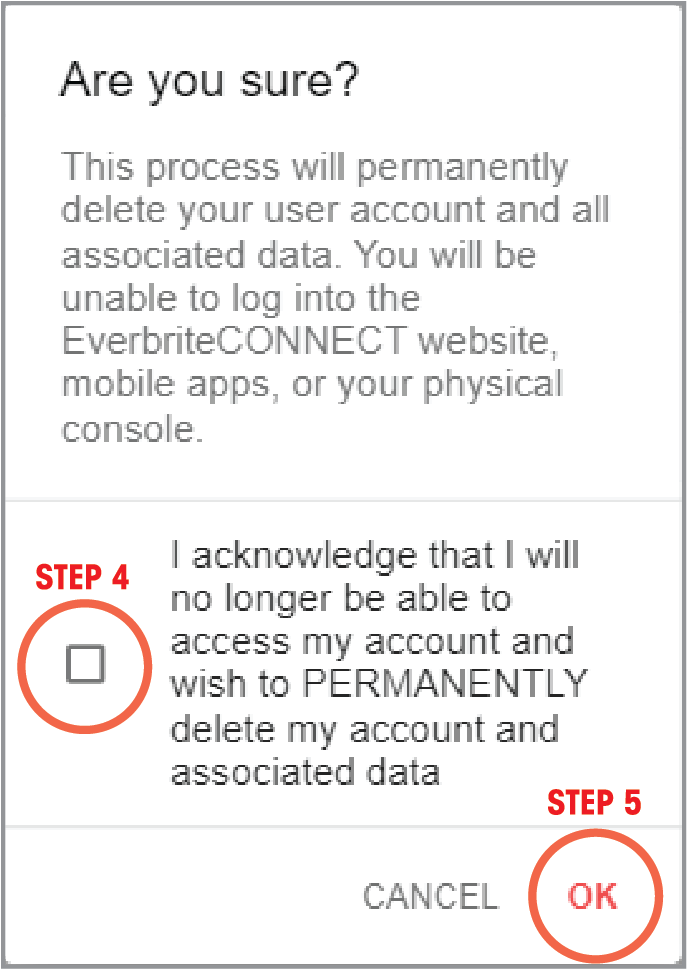
WARNING: This will permanently delete your user account and all associated data. You cannot log into the EverbriteCONNECT website, mobile apps, or your physical console.
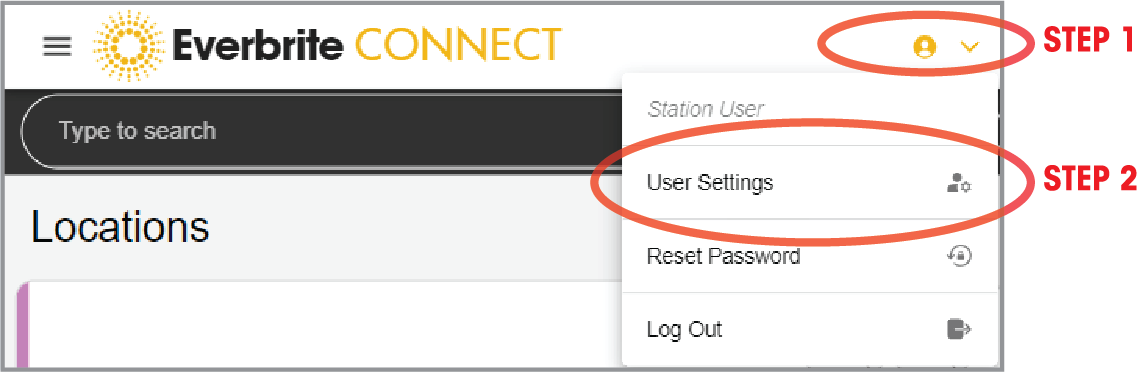
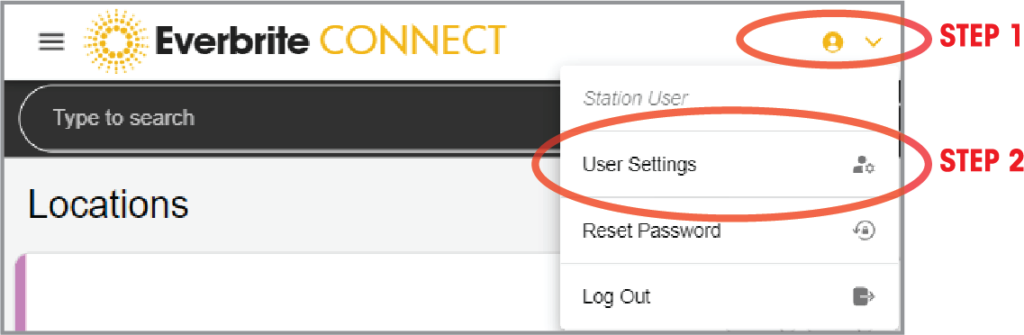
Press the Profile Icon and then User Settings
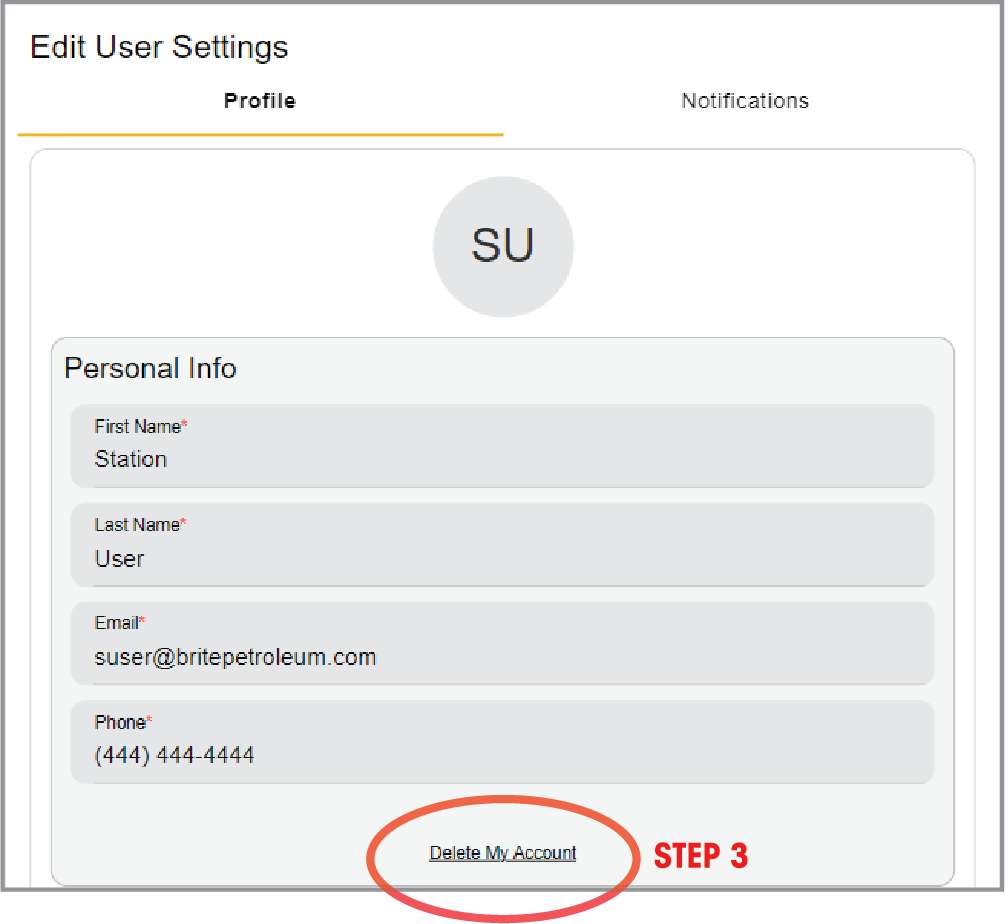
Press Delete My Account
Check the acknowledgement and press OK
If you no longer have access to your account or do not wish to sign in, please use the contact form. An Everbrite representative will process your account and delete your personal data.
The EverbriteCONNECT Quick-Start Guide contains instructions on getting your console set up and running for the first time. A physical copy was provided with your console, and a digital copy can be found here.
The LumiConsole and website/mobile app require an account login provided by your distributor/jobber. This will send you an email prompting you to set your password for the first time. Once you have successfully set your password, use this.
Please contact your distributor/jobber for assistance if you did not receive this email.
Distributors/Jobbers: See FAQs for account creation instructions.
For any additional assistance, please contact Technical Support at 800-796-7427.
Please reference our Frequently Asked Questions for help with common issues.
The EverbriteCONNECT Quick-Start Guide contains instructions on getting your console set up and running for the first time. A physical copy was provided with your console, and a digital copy can be found here.
For any additional assistance, please contact Technical Support at 800-796-7427.
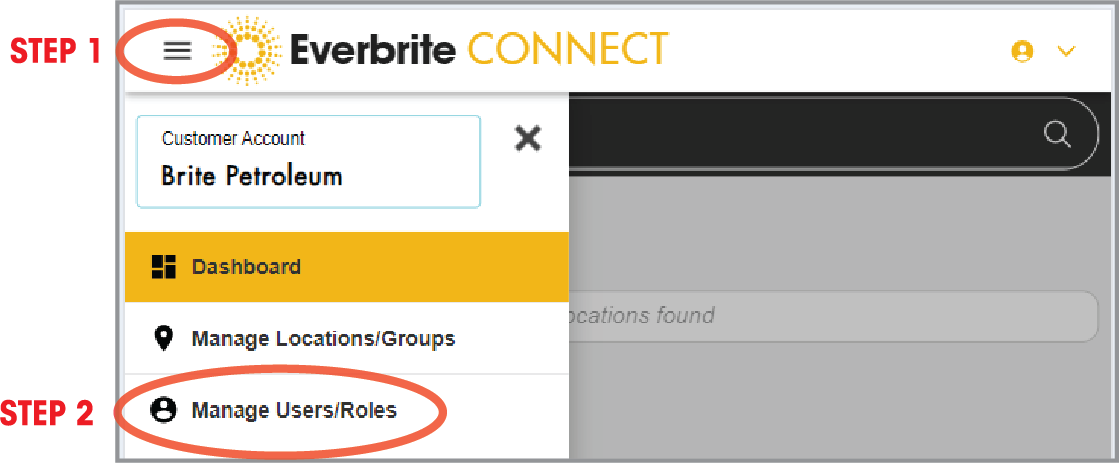
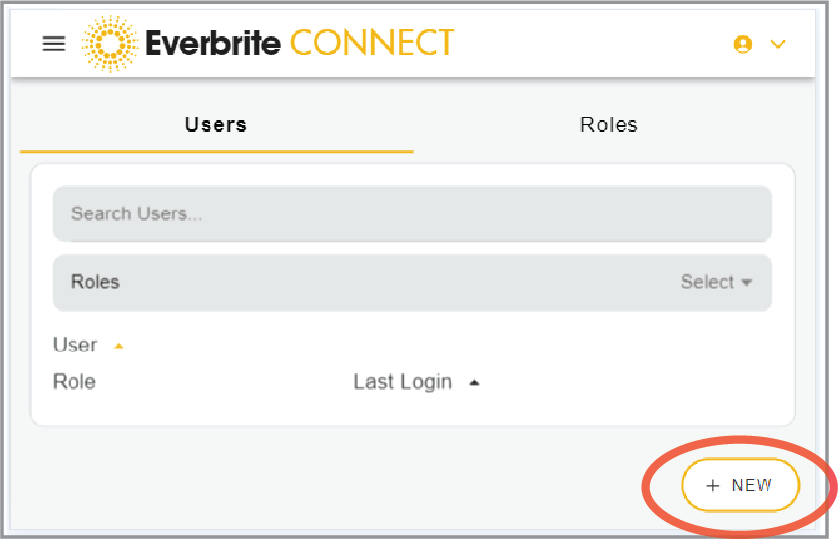
Press the Menu Icon, and then Manage Users/Roles
Press New
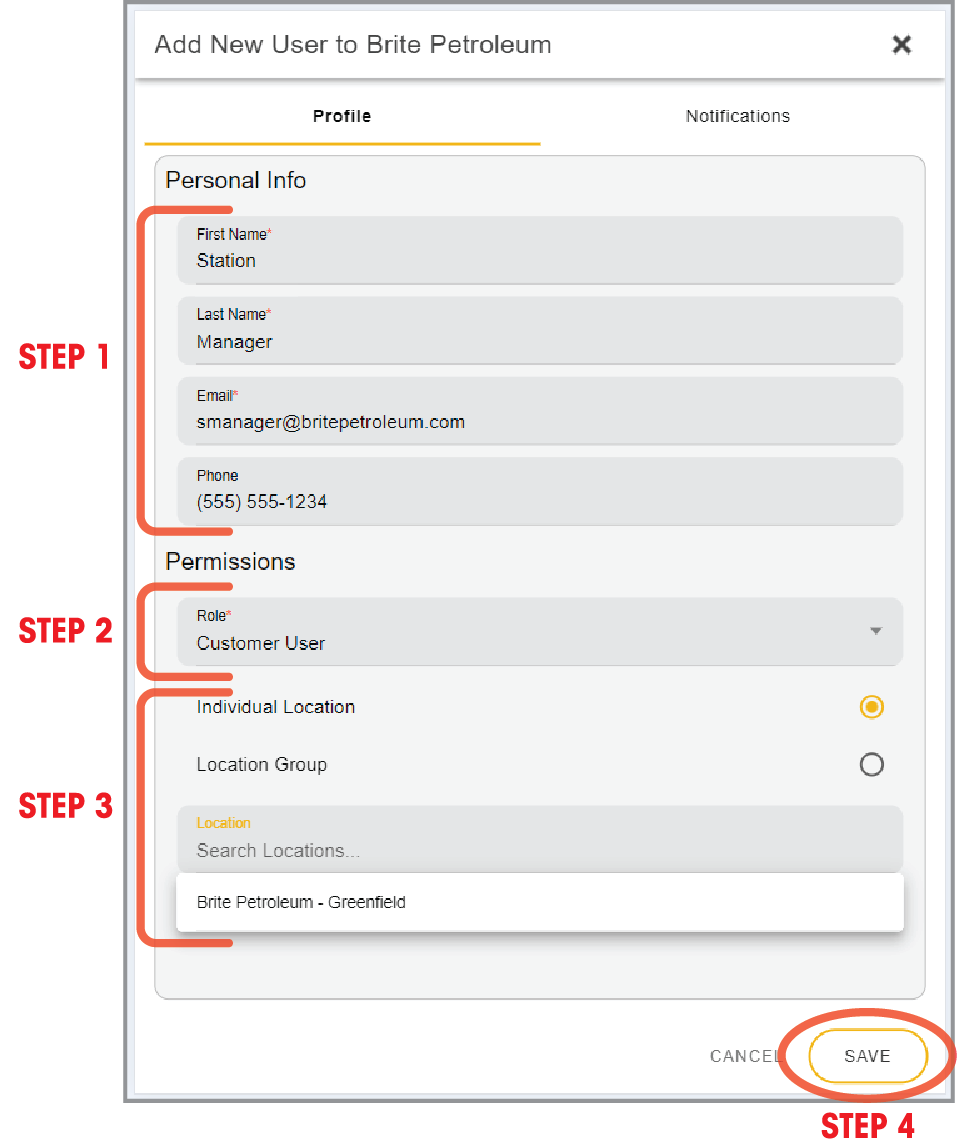
Enter the personal information of the user being created. Under Permissions, assign the Role of Customer User.
For users with access to only a single location, select Individual Location and then select the store location they should have access to. Press Save to create the account.
The user will receive an introductory email prompting them to set their password.
Users with access to multiple locations can be assigned to a Location Group.
The Operator’s Manual provides instructions on creating and managing Location Groups.
When logged into your user account on the website or mobile app (required for push notifications):
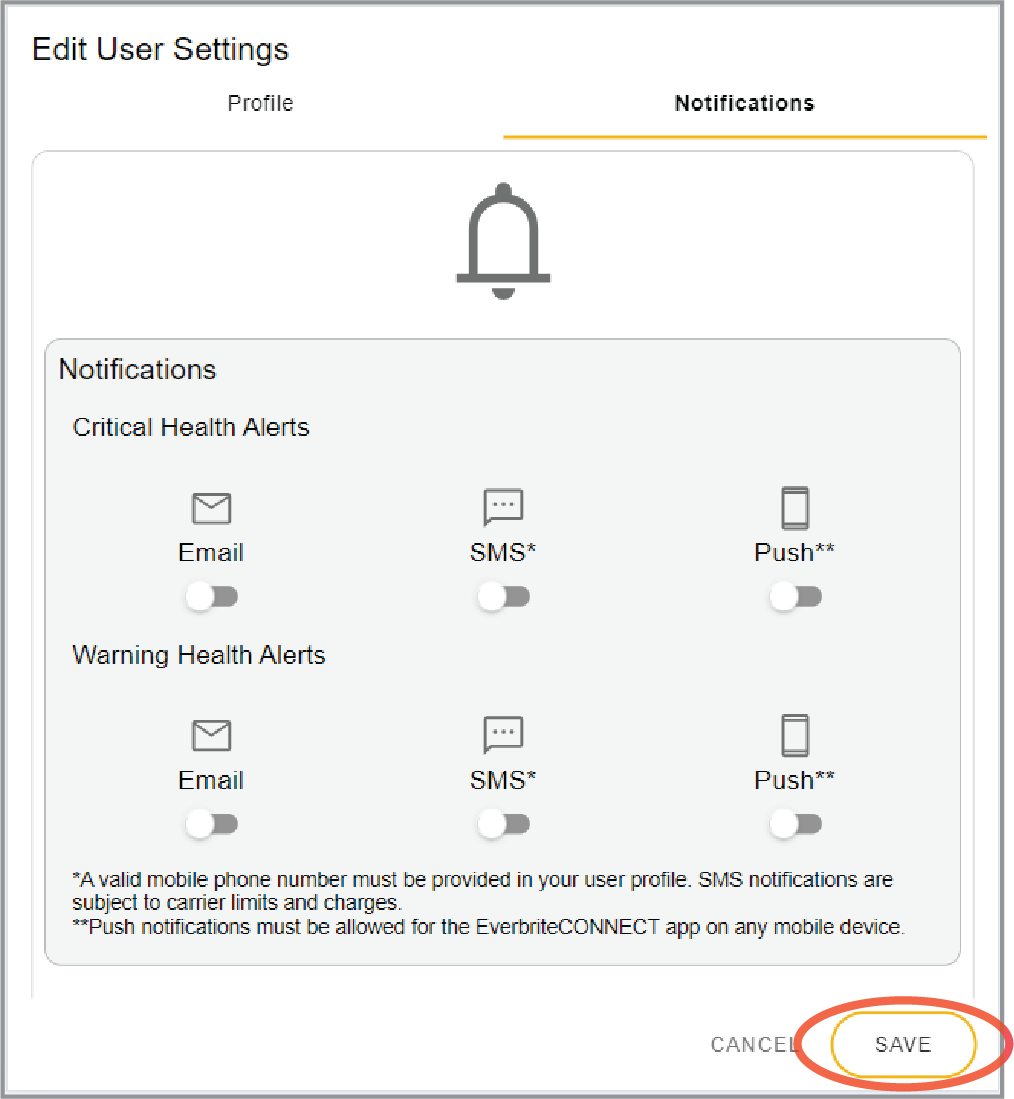
Press the Profile Icon and then User Settings
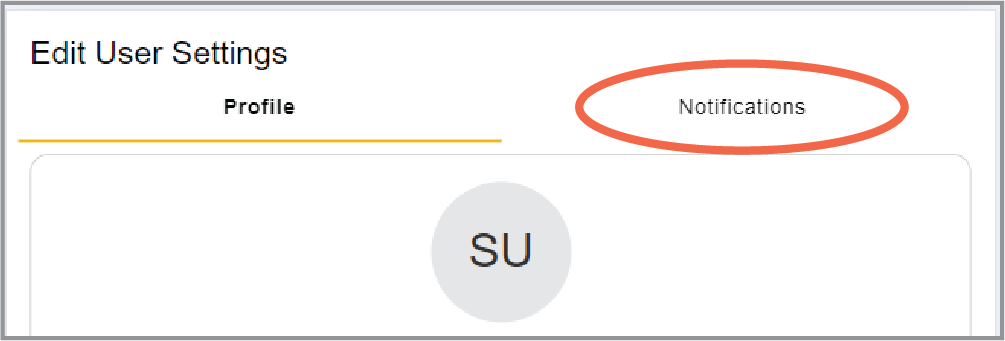
Press the Notifications tab at the top of the screen
Toggle the desired notification severity threshold and method on/off to opt in/out of email, SMS (text), or push notifications
Please reference the Operator’s Manual for more information on health monitoring alerts.
If operating on battery power:
Connect console power adapter and do not attempt to use on battery power for a minimum of 30 minutes.
Note: The console must have a minimum of 20% battery charge remaining to boot. This protects the device from protential damage.
If console is plugged in:
Verify console power adapter is securely attached to console power input and power outlet.
Reference Sign Status on Dashboard. If
is present, tap to get more information.
Note: Upon updating pricing on controller or in app, it make take up to 5 minutes for changes to be reflected on your sign.
Accessing EverbriteCONNECT
Use the EverbriteCONNECT mobile app or web portal to monitor and manage your console from your mobile device or computer.
Web Portal
Technical Support
Phone: 800-796-7427