LumiText™ Configurator
Overview
LumiText signs have the ability to display user-configured messages as well as other information such as temperature, date and time, and more.
EverbriteCONNECT introduces new scheduling features allowing you to configure playlists and easily view and manage those playlists in a user-friendly interface
The Playlist Configurator provides the ability to group individual messages (“frames”) on your LumiText™ Electronic Message Center into playlists for easy scheduling.
For new signs, by default there will be no playlists scheduled and the LumiText sign will be blank until one is configured.
Playlists Viewer
The Playlists Viewer displays a calendar view of which playlist(s) play on different dates, as well as a list of your current playlist library and the ability to create new playlists.
Playlist Calendar
Displays a calendar view of any playlist(s) configured.
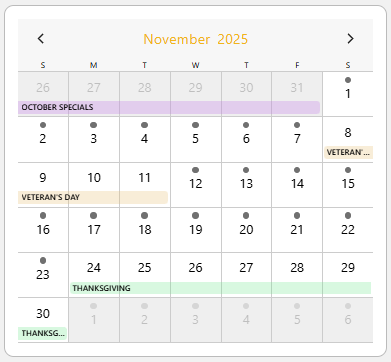
Use the left and right arrow icons to change months.
Any configured playlists for the dates visible will be displayed. Dates with a configured playlist will show the name of the playlist, color coded to the color shown in the Playlist Library. Dates with a  will play a Default Playlist if no other playlist is configured. If no playlist or Default Playlist is configured, the date will show no icon and the sign will be blank.
Playlist Library
The Playlist Library shows all currently configured playlists. If you have several playlists you may need to scroll down.
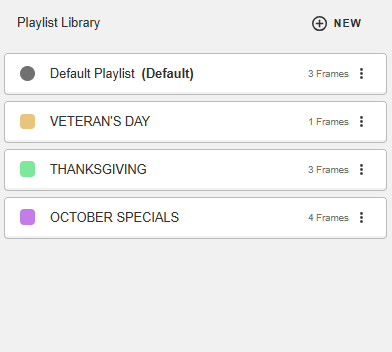
Press  to create a new Playlist
Press  to be given the following options:
Edit - Edit playback dates and frames for the playlist by entering the Playlist Configurator
Duplicate - Create a copy of the existing playlist. Not available for the Default Playlist
Delete - Deletes the playlist. This will NOT delete frames configured or assigned to the playlist.
Playlist Configurator
Configure Playlist
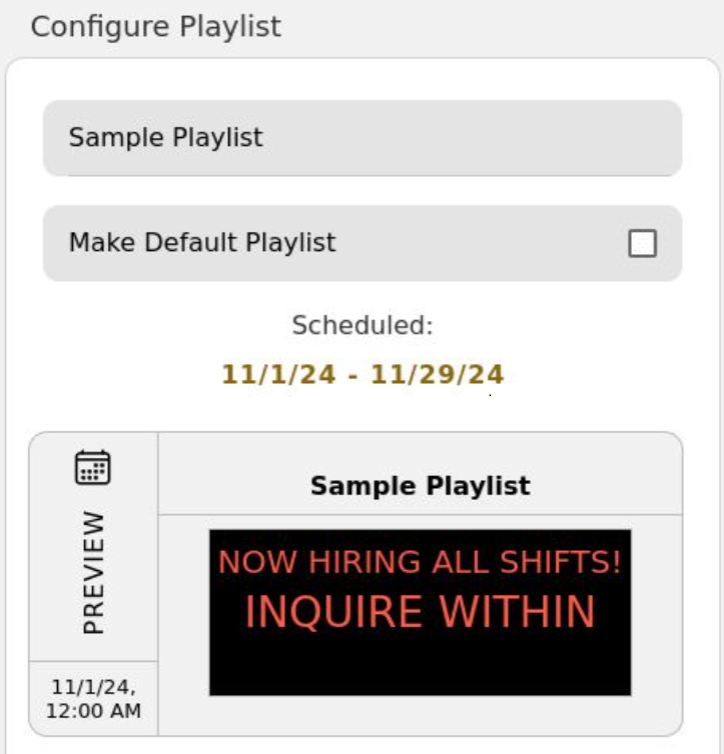
Playlist Name - Select an easy to remember name for what you are using the playlist for
Checking Make Default Playlist sets this playlist to play on days where no other playlists are configured.
Lists the dates the playlist is configured to run. To set or edit a date range, press the dates.
A preview of the display of the frame(s) configured for this playlist.
Note
Preview is for illustrative purposes only. Actual display on your sign will vary based on the number of rows and columns of your LumiText sign.
Playlist Timeline
Lists all of the frames (up to 20) configured to play in the playlist. Frames will play back in the order shown.
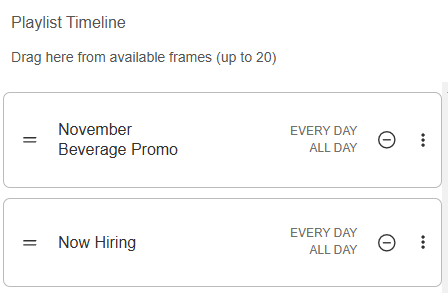
Press the  icon to remove the frame from the playlist. This does not delete the frame.
Drag the  icon up and down to rearrange the order of the frames in the playlist.
Press and then Edit to edit the Frame in the Frame Configurator.
Available Frames
Lists all of the frames you have configured.

Press to create a new frame.
Use to filter the titles of your configured frames
A list of your configured frames, and the dates and times they are configured to play back. Press to Edit, Duplicate, or Delete the frame.
Drag the icon up and down to rearrange the order of the frames in the playlist.
Press Save to save any changes to your Playlist, or discard unsaved changes.
Frame Configurator
The Frame Configurator is used to configure the messages that will display on your LumiText sign.
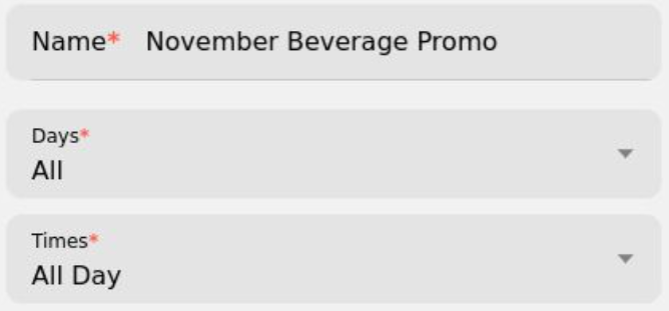
Name - An easy to remember name for the message. This will be the name used to find your Frame in the list of Available Frames in the Playlist Configurator.
Days - Restricts playback of the frame to specific day criteria. Available options include individual days of the week, weekdays only, weekends only, All days, and off (frame is not used)
Times - Restricts playback to specific times of the day. By default this will be set to All Day - you can also specify specific time ranges for playback.
Line Configuration
Individual lines (rows) of your LumiText sign can be configured with different types of content.
Line Mode: Defines the type of content that will be displayed in the frame. Available options include:
Text - Displays user-configured text on the display.
The following characters are supported by the LumiText EMC: 0-9, A-Z (Uppercase), Space, and the following special characters: ! @ # $ % & * ( ) - _ = + [ ] ; : ‘ “ , . < > / ? o
DayOfWeek - Displays the current day of the week (e.g. Thursday)
Date - Displays the current month, day, and year (e.g. Nov 1st, 2024)
DayAndDate - Displays the current day of the week, month, day, and year (e.g. Friday, Nov 1st, 2024)
Time - Displays the current time (e.g. 2:54 PM)
Temperature - Displays the current temperature (e.g. 75°F)
TimeAndTemperature - Displays the current time temperature (e.g. 2:54PM 75°F)
Height - The number of physical lines (rows) that the configured message will take up on the sign
Note
Total number of lines and height must not exceed the total number of physical lines (rows) on your LumiText sign. For example, a LumiText sign with two lines (rows) can have either up to two lines, or one line with a height of 2. Any additional configured lines will not be visible. Exceeding these limits will present an error message reminding you of this limitation.
Animation - Configures an animation for the text. Available options include:
Travel - Text scrolls from right to left
Hold - Text stays visible at all times and does not move
Flash[Number] - Text flashes on and off a number of times equal to the number selected (e.g. Flash2 will flash 2 times)
PushUp - Text rises from the bottom of the line and stops when centered.
Push Down - Text appears from top and stops when centered.
Wipe Up - Text appears showing the bottom of the character and wiping up.
Wipe Down - Text appears showing the top of the character and wiping down.
Wipe Left - Text appears by wiping left from the end of the line.
Wipe Right - Text appears by wiping right from the beginning of the line.
Wipe In - Text appears by wiping in from the outer edges of the sign to the center.
Wipe Out - Text appears by wiping out from the center of the sign to the edges.

Adds a new line (row) to the frame.
Note
Total number of lines and height must not exceed the total number of physical lines (rows) on your LumiText sign. For example, a LumiText sign with two lines (rows) can have either up to two lines, or one line with a height of 2. Any additional configured lines will not be visible.
Frame Options
The following options are available for the frame:
Speed - Controls the speed of the animation. Options are Slow, Medium, and Fast
Delay (s) - Controls the number of seconds that each frame will be displayed before moving on to the next frame in the playlist
Preview - Displays a preview of the line(s) configured.
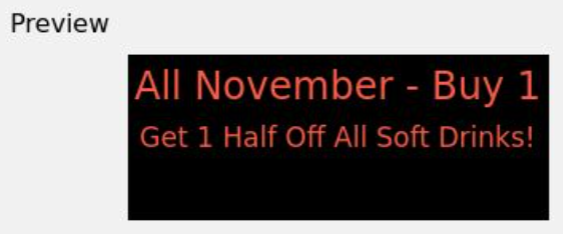
Note
Preview is for illustrative purposes only. Actual display on your sign will vary based on the number of rows and columns of your LumiText sign.