Diagnostics & Troubleshooting Tools
Overview
The EverbriteCONNECT console and web/mobile apps contain various diagnostic and troubleshooting tools, allowing you to troubleshoot and resolve issues that may arise after installation. Everbrite Technical Support can also utilize these and other diagnostic tools to provide further assistance if needed.
Health Metric History
Note
Health Metric History graphs are optimized for viewing on a computer or tablet. While still accessible on the console or a phone, you will need to scroll left/right to see the entire graph.
EverbriteCONNECT logs historical information for various Console and Sign health metrics over time. The Health Metric History graphs can be used to diagnose intermittent issues or issues over time.
Accessing Console Health Metrics
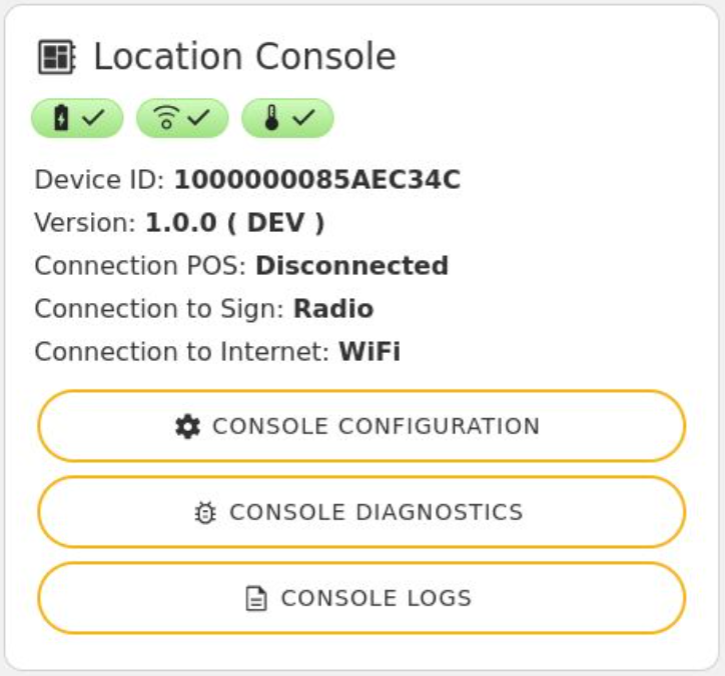
To access the Console health metrics, press the  /
/  /
/  icon associated with the metric you would like to view.
Accessing Sign Health Metrics

To access the sign health metrics, press the / /  icon associated with the metric you would like to view. For sites with multiple signs, individual signs have their own health metrics, so be sure to select the correct sign that you would like to view health metrics for.
Viewing Health Metrics:
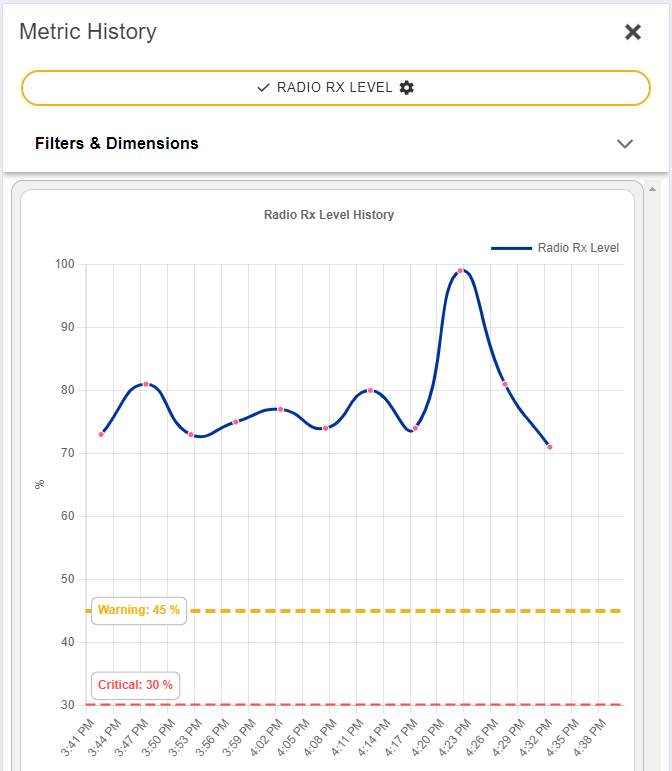
The health metric displayed will default to the Console/Sign health metric badge you selected above, over a time period of 1 hour. Warning and Critical levels will be indicated.
Changing Health Metric Views
To change the Console/Sign metric to be displayed, press the button for the current health metric being displayed, in this example Radio RX Level:

You will then be presented with a list of available metrics for your Controller/Sign.
To change the date/time range displayed, press Filters & Dimensions:

Press Date Range to select the range you would like displayed. Selecting Custom will allow you to set a custom start and end date/time.

Console Diagnostics
Press Console Diagnostics to access the Console Diagnostic tools
To navigate to different tabs, select the desired test from the tabs at the top of the screen:

Lamp Test
For signs equipped with a lamp control relay, this will test the relay and the lamps by turning the lamps on to high for 5 minutes and then shutting off.
POS Test
Returns information about the current Point of Sale system and configuration. Can be used to diagnose POS communication or configuration issues
Sign Reboot/Self Test
This will reboot any attached signs, and initiate a self-test mode that will cause the sign(s) to cycle through illuminated LEDs and display diagnostic information.
Note
As this will temporarily remove any pricing information on your sign(s), it is recommended only to run this test at the direction of Everbrite Technical Support
Sync Sign Radio
Used to synchronize and reconfigure the radio channel and ID used by your sign(s). Requires physical access to the sign internals.
Note
This function should only be used by a qualified installer, or at the direction of Everbrite Technical Support
Sign Diagnostics
Note
Sign Diagnostics apply to individual signs and their digits. For sites with multiple signs, be sure to select the sign you wish to interact with
Press Sign Diagnostics to access the Sign Diagnostic tools
To navigate to different tabs, select the desired test from the tabs at the top of the screen:

Note
Additional tabs and diagnostic tools will become visible by tapping the furthest-right tab at the top, or swiping to the right to advance to the next tab.
Sign Pricing - Reads back the values currently displayed on the digits on your sign, including the value of the 9/10ths digit and not including the decimal point. Any product line(s) not in use will display N/A
Sign Status - Reads back the values of vital operating parameters of the sign such as the signal level, controller temperature, and more.
EMC Display Test - For signs equipped with a LumiText™ Electronic Message Center. Will reboot the sign, which will then cycle through a diagnostic mode for roughly 3 minutes. This will illuminate all LEDs and cycle through various diagnostic information.
EMC Display Off - For signs equipped with a LumiText™ Electronic Message Center. Will interrupt the current playback and blank the LEDs for several minutes.
Controller Message Counter - For two-sided signs. Reads back the number of messages sent between the Side A and Side B controller, and the success rate. A particularly low success rate may indicate a problem with the A/B connector or one/both controllers.
Controller Voltage - Reads back the current voltage values for the sign’s controller(s)
Digit Firmware Versions - Reads back the current firmware version running on all of the sign’s digits
Digit Voltage - Reads back the current voltage values for all of the sign’s digit(s)
Digit Temperature - Reads back the current temperature values for all of the sign’s digit(s)
Console Logging
Logfiles containing advanced technical information about the console operating history can be found in Console Logging, accessible either through the Console Logs button under Location Console, or Log Viewer under the Menu.
Note
While available to the end user, Console Logging is intended primarily for use by Everbrite Technical Support to diagnose issues. Information provided by this tool is extremely verbose.
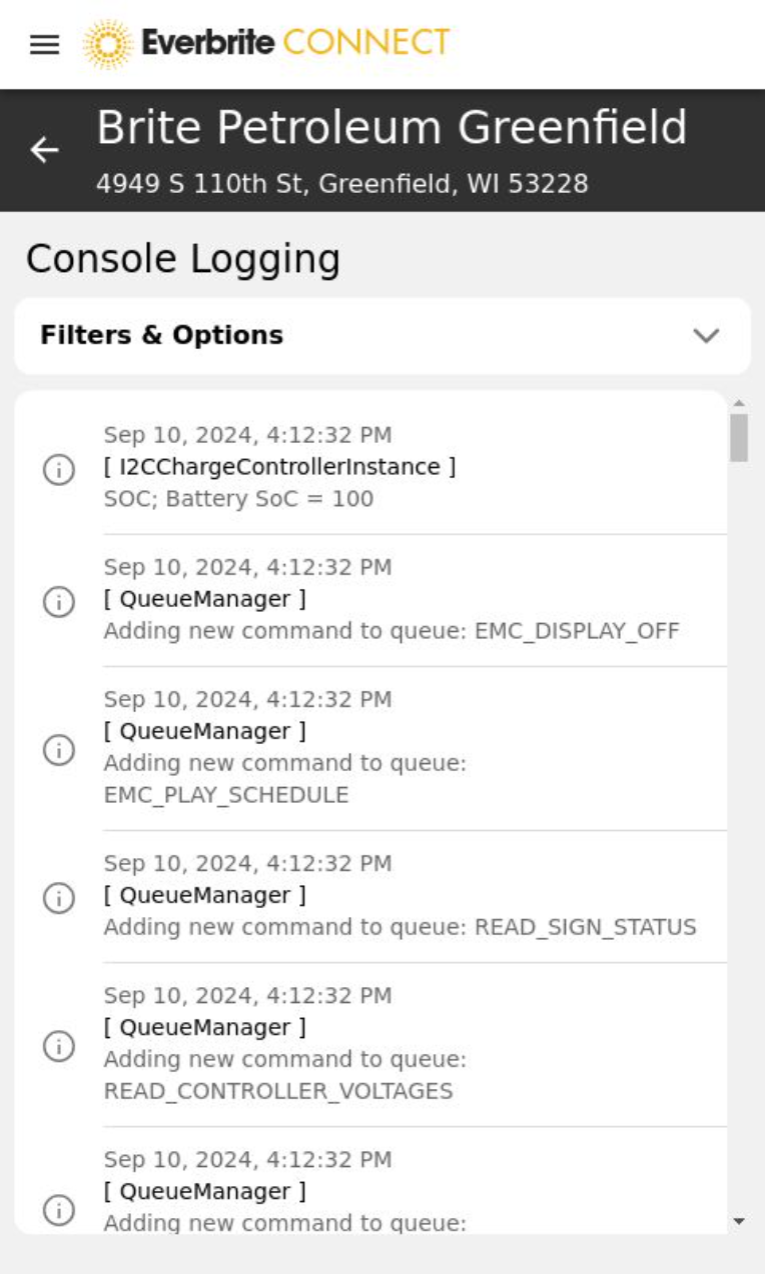
Filters & Options can be expanded to change the Date Range and severity level displayed.
Log entries for the date range and scope specified are displayed here