Hardware & System Overview
LumiConsole Product Layout
Important
Protective film on console screen contains username and password needed for product activation. Leave film on console until final product installation. Credentials will be valid for 1 week after activation and should be securely discarded after use and not shared.
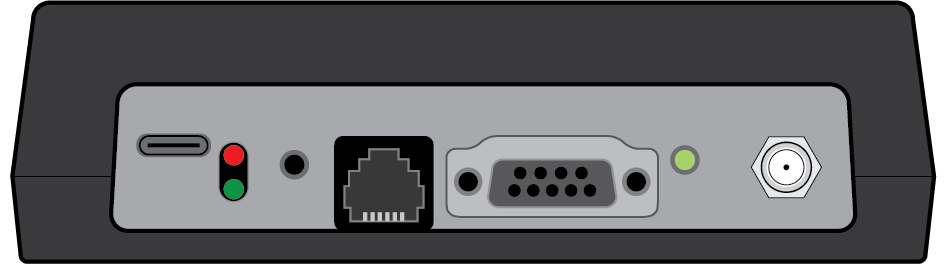
Top View
Detail:

USB-C Power Input - Power input for your EverbriteCONNECT Console. Everbrite recommends using the power supply that came with your console. Requires use of a 5.1V/3A USB-C, UL62368-compliant power adapter.
Note
Console must be plugged in to input power and remain on during normal operation, with battery function used as-needed for troubleshooting. Using console on battery power excessively will degrade battery life. Use of an incorrect power supply may cause damage to the console.

Power LEDs - Displays the current power, battery, and charging status of your console.
LED States:
Console state |
Red LED |
Green LED |
Description |
|---|---|---|---|
On |
On |
Off |
Battery Charging |
On |
Off |
On |
Charging Complete |
Off |
3 Flashes |
Off |
Battery too low. Charge for at least 15 minutes. |
Off |
Alternates |
Alternates |
Charge error. See troubleshooting information. |

Power Button - Used to power on, off, or reboot your console. For details on how to perform these operations through the touchscreen interface, see The Menu - Console
Power Button Behavior:
To power on the console, press and hold the power button for at least three seconds.
If you see three RED LED flashes, the battery is too low to run the console. Connect the charger and charge for at least 30 minutes before operating on battery. Once the charger is connected, the console may be powered on.
To power off the console, press and hold the power button for at least five seconds. The UI will shut off within another two seconds and the power will be cut off within another 5 seconds.
If the console does not power off using the directions above, the console can be forced off. To force the console to power off, press and hold the power button for at least eight seconds. The LED will flash GREEN 3 times indicating forced power-off, the screen will blank, and the device will be able to be powered on again after another 5 seconds.

Hardwired Connector - Provides an interface for a wired connection to a sign. Not typically utilized and should not be connected except by an authorized Everbrite installer.
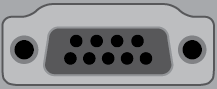
RS232 Input - Provides a connection to a supported Point of Sale system via a DB9 RS232 cable.

Radio LED - Illuminates when console radio is actively transmitting/receiving data from your sign(s).

Antenna Connector - Attachment point for the antenna used for communication to/from your sign(s). Antenna can be connected by threading on clockwise.
Note
Antenna should remain connected at all times, and must remain connected for console to communicate to sign. During normal operation, antenna should be oriented vertically.
Front View

Touchscreen - Console touchscreen is designed to be operated with a finger.
Note
Care should be taken to avoid damage to the touchscreen. Use touchscreen with a finger only - using a pen, stylus, or other object may cause damage to the screen. Avoid spilling liquid on console and only clean with damp microfiber cloth.
Bottom View
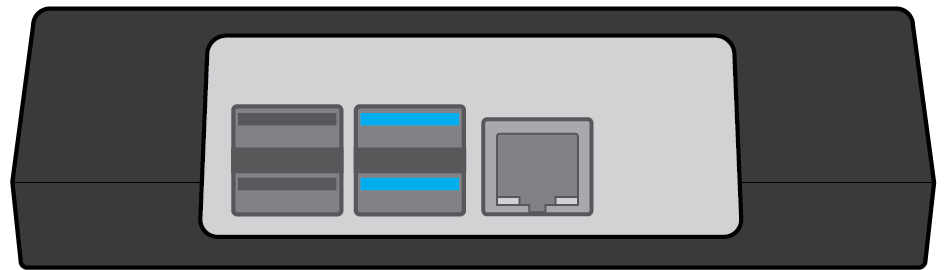
Detail:

USB Ports - Can be used for local software updates to the EverbriteCONNECT console in the event an internet connection is not available. Not used during normal operation - only use at the direction of Everbrite Technical Support.

Ethernet Port - Ethernet port allowing for a hardwired connection to the internet. Must use a cat5 ethernet cable or higher. For full list of technical requirements, see LumiConsole Technical Requirements
Operation Modes
The LumiConsole provides three different operating modes to accomodate site-specific requirements and user preference. To change between operating modes, see The Menu - Console
Locked Mode
Locked Mode is the default operation mode for the EverbriteCONNECT console. In Locked mode, an EverbriteCONNECT login will be required at power-on and every 24 hours for security purposes. Point of Sale-controlled pricing updates and remote pricing updates will continue to operate in the event a login has timed out. The Console will also remain connected to EverbriteCONNECT to enable heath monitoring and remote control.
Note
Everbrite recommends utilizing Locked Mode to ensure that only authorized users may make changes to sign pricing, captions, and other settings
Unlocked Mode
Console will not require a login at power-on, remains connected to EverbriteCONNECT services over the internet. Many console and sign configuration items are disabled in this mode for security purposes.
Note
In Unlocked Mode, any person with physical access to the console will be able to make changes to sign pricing, captions, and other settings
Offline Mode
Offline Mode can be used in the event the EverbriteCONNECT console is installed at a location that does not, and will not have internet access. Console will operate similar to unlocked mode, with additional hardware configuration options unlocked. Operating in off-line mode will disable mobile/sms/email health monitoring alerts, remote control and diagnostics.
Note
Do not utilize Offline Mode for temporary internet disruptions. In Offline Mode, any person with physical access to the console will be able to make changes to sign pricing, captions, and other settings. Operating in off-line mode will disable mobile/sms/email health monitoring alerts, remote control and diagnostics.